Showing posts with label notetaking. Show all posts

10 Great, Free Apps for Students for Notetaking and Class Planning

Posted in Labels: , , , ,


These days, there are some great apps for students to use to take notes for class, or to use as class planners.


1. Evernote and EverStudent
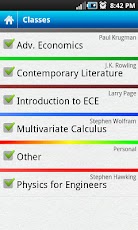
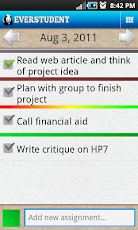
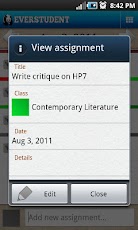
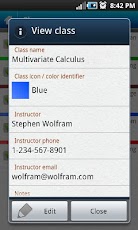
My favorite is Evernote. I use it for everything, literally, and many of my students use it for taking notes, clipping web pages, creating to do lists, and more. There is also a new Android app available, called EverStudent, that integrates with Evernote and acts as a planner for students. EverStudent allows students to manage tasks and assignments with a planner interface by class, color code classes, add instructor info to your notes and group classes by semester or term. All the information is synced to Evernote for access from any device and to share with others. It is available for Android only.

2. Skitch

Skitch also works with Evernote and allows you to create sketches and annotate, edit and save photos and your sketches. Students could use this to take notes or sketches that can't be done with just text. It's available for Android and Mac. iOS version is coming.


3. MySchoolNotebook


MySchoolNotebook is another note taking app I just reviewed earlier here: http://educationaltechnologyguy.blogspot.com/2012/02/myschoolnotebook-free-onlineapps-for.html


4. Memonic


Memonic is similar to other note taking tools in that you can clip web content, take text notes, share notes, and access it from any computer. There are also apps for iOS and Android. You can also email a note to your Memonic account from any computer.

There is also a feature coming that will allow you to use Memonic's web clipper to save notes directly to your Evernote account.


5. SimpleNote

SimpleNote is exactly what it's name says - it's a free, simple note taking app. Notes are just text. However, it does have some great features. You can access it from any computer or web-enabled device. You can easily start and make a note and even share it with others. Your notes are searchable with tags and content search, and there are some extensions and add-ons that you can use with it.


6. SpringPad


Springpad is a notes and organizing service that allows you to create and organize tasks in a different way than Evernote, and organizes your notes differently. You can take notes, clip web sites, create task lists, and more, just like in Evernote, but you can also import data from a bar code, search by location, and add photos. You can organize things by notebooks and tags like in Evernote, but Springpad also has "The Board" which is a digital cork board to help you organize the important things.

Springpad is free, and is available via web app and for iPhone, iPad, and Android.


7. TrackClass


Trackclass is a great, free resource for students. The site allows students to track their classes and assignments, and even will send reminders (email or SMS) for upcoming assignment due dates and test dates. There is also a note taking utility so students can take notes on it if they have a computer in school, or transcribe notes later. You can even attach files to each class and assignment to keep things organized. It is a great way for students to stay organized.


8. Soshiku 


Shoshiku is another free class organizer, similar to Trackclass. It has a calendar, notes, task list, and reminder system like Trackclass. It is not as full featured, in my opinion, as Trackclass, but it is easy to use and some students may like it better than Trackclass.


9a. Paper Planners - Even today, with students having smartphones and laptops and tablets, some still prefer to use paper planners. I use to use Franklin Quest planners until I got my first PDA (A Palm IIIxe in 2000). Some planners can be customized for your school too. We give every student a planner that includes schedules, calendar, homework and assignment lists, and even a hall pass log.

Here are some links to some paper planners. They are obviously not free. Students could also print out blank calendar and planner pages that you can find online and use them as a free paper planner.

Franklin Covey - great paper planning systems, but a little pricey for students.
Day Timer paper planners
DIY Planner - make and print your own planner pages
Planner Pads - paper planners
Day Runner - paper planners
Mead Student Planners
At-A-Glance
Student Planner USA - some nice ones on here (and not expensive)
SchoolMate Student Planners

9b. LiveScribe smart pen


Students could use a LiveScribe smart pen to take paper notes, but have those notes synced to their computer (and even to Evernote). This is a good option for math, science, and engineering, where you really can't take good notes using a keyboard. It also has a voice recorder to record what the teacher is saying. You can buy notebooks, or print out your own paper notes.


10. Google - Calendar, Docs, and Task List 


Google is another great way to get organized and take notes. Google Calendar is a great way to organize class schedules, assignment due dates with reminders and more. You can even color code classes and assignments. If the teacher uses Google Calendar for the class, you can just view that calendar with yours. Google Docs can be used for taking notes and the Tasks can be used as a task list. They can be accessed from any computer or mobile device.


Share these with your students (and use some yourself).


What are your favorite apps for taking notes and getting organized?


mySchoolNotebook - free online/apps for taking notes

Posted in Labels: , ,


mySchoolNotebook is a note taking service the lets students, or anyone else, take notes, edit and format them, and even add images and videos to the notes.

The free plan does have some limits, but still has a lot of features, including notebook sharing, mobile access and offline access. The paid account adds unlimited notebooks, as well as a few other features, for only $2/month.

There are Android and iOS apps for it also, as well as a web app. You can create different notebooks for different classes, etc.

This is a great app for students to get their notes digital.

Related:


Gallery


Catch - easily capture notes, information and more

Posted in Labels: , , ,

Catch

Catch is a service, similar to Evernote, that allows you to capture notes, photos, voice memos, and more and then access it anywhere. You can use the iPhone, iPad or Android app or access it through the web. Data is synced on your device so you can access it even when offline. They have browser extensions for clipping web content also (Chrome, IE, Firefox).

The free account is pretty powerful and offers the mobile notebook and journal, text, web clippings, photos and voice memos, 3 streams and 70MB per month of content uploaded. You can even Geotag your notes.

You can also upgrade to paid accounts to add brainstorming and conversations, along with increased streams and data upload amounts.

A stream is a way to group different data (notes, photos, etc) into a topic to keep them organized.

You can share your content with others, or keep it private. They also have Catch-U, a help site that can help get you started using Catch.

You can create a free account or login using Google or Facebook.

Catch seems like another great way to collect and organize data and notes.

catch.com


Related:


Studyers - create, organize, and share notes

Posted in Labels: ,

Studyers_logo

Studyers is an alpha invite site that I just started using this weekend that allows students to create, organize, and share notes from class. It is from the same developer that made InstaNotes, which I also just reviewed.

What is different about Studyers from other note taking apps is that students can easily add the lecturer's presentation to their notebook and then take notes below each slide and add drawings or graphs. You can also easily share your notes with others. There is also a direct link to look things up on Wikipedia, which can come in very handy during class.

It was very easy to use and there is a "getting started" notebook in the alpha users account I used. 

There is also a video about using Studyers here: http://vimeo.com/34774882

This will be a great tool for educators and students for taking and organizing notes. I think it would also be great as a modification for students who need to have lecture notes in front of them as they work. It's simple interface limits distractions, yet it has the features you need.

Hopefully it will be released to Beta soon so that more people can try it out. 


InstaNotes - take notes in browser then email

Posted in Labels: , ,


InstaNotes


InstaNotes is a very cool, free site I just learned about today from the developer, @studyers, that allows you to take simple notes in your browser window and then you can email them out after. It uses Facebook to login.

This would be a great resource for students who are on a school or shared computer and need to take notes. When done, they could just email their notes to themselves, or anyone else, and they are done. No software to install.


CorkBoard Me - online sticky notes web app

Posted in Labels: , ,


CorkBoard Me is a free web app that allows you to create a virtual cork board with sticky notes. You can create your own cork board without a login and share the unique URL with others. There is no space limitation and you can organize your notes on the cork board in any way you want. You can even add images to your cork board by pasting the link to the image and you can easily add notes to the image.

Your cork board is accessible from any web enabled device and mobile device support is coming. They are also working on licensing, privacy and custom boards which might be useful for schools and districts.

Students and teachers could use this to share notes, collaborate on projects, and much more. The notes can be rearranged as needed and could be used for story boarding, programming layouts and more.


Notetaking Apps - a comparison of some popular ones

Posted in Labels: ,


Notetaking apps are a great way to get organized and keep track of everything electronically. There are a lot of different ones out there, so I thought I would go through some of the more popular ones and list some of the features they have. Click on the links for more information on each one also.


1. Evernote - this is the note taking app that I use the most. It is free, available on all platforms (web, Mac, iOS, Windows, Android, webOS, and more), easy to use, full featured and high quality. You can organize your notes into different notebooks, tag each note, attach files to notes, and clip content from web pages with the browser extension. You can also share your notes with others. The iOS and Android apps are great. It can even search text in a photo. Evernote also integrates with other services and lets create notes through email and save your Livescribe pen notes to your notebook. Here are some Great Ideas for Using Evernote in Education.


2. SpringPad - this is another very good note taking app that I have used. Springpad is free, and is available via web app and for iPhone, iPad, and Android. Springpad allows you to create and organize tasks and notes. You can take notes, clip web sites, create task lists, and more, just like in Evernote, but you can also import data from a bar code, search by location, and add photos. You can organize things by notebooks and tags like in Evernote, but Springpad also has "The Board" which is a digital cork board to help you organize the important things.


3. Livescribe Smart Pen - These are electronic pens that record what you write, and hear, and then you can load this into your computer to keep a digital copy of your written notes and even share your notes with others. You can easily send your notes to Evernote, email, Google Docs and more. It's great to be able to take notes in math and science on paper, and then have them saved digitally. The ability to record audio that is synced with your written notes is also very useful. (full review here)


4. Word Processing software - you can also take notes using word processing software, such as MS Word, Google Docs, OpenOffice / LibreOffice, etc. You can take notes and use the outline format, insert symbols and tables, and much more. With Word and OpenOffice / LibreOffice, you have to have the file synced to the cloud somehow to be able to access the notes somewhere else. Dropbox and SugarSync are great file sync services to use to do this. Google Docs, on the other hand, is in the cloud, and therefore accessible from any web browser. You can also share Google Docs with others. Google Docs and OpenOffice/LibreOffice are all free, while Word is not. There are even templates for all of these for note taking. Here is a note template I created from my early days as an engineer.


OneNote icon
5. OneNote - Microsoft OneNote is a note taking app that I had used a few years ago and just started looking at again. It is not free, but comes bundled with Microsoft Office (all versions) and is available for the iPad, iPhone, Windows Phone 7 and there is a web app. After asking around online and trying it out this week, I found that the organization is nice. You can create tabs in each notebook, just like a paper notebook would have. It is also very good for tablets, allowing you to use a stylus to capture handwritten notes. There are note templates available and you can share your notes to access on the web using SkyDrive.


TapNote
6. TapNote - TapNote is a simple note taking app for the HP TouchPad and webOS SmartPhones. It is simple and uncluttered and the notes are automatically synced with your Dropbox account so that you can access them anywhere (they are saved as .txt files). It does have some great features for sharing and creating notes and you can try the lite version before purchasing.


7. Built in notes apps on smart phones - smart phones all have their own built in notes apps. Most don't sync to anything and are very plain text, but they are great for jotting down quick notes. They also have other simple note taking apps you can download. A good, simple note taking app for Android is Melon. You can quickly create notes, and organize them like sticky notes.


There are many more too. When choosing a note taking app, it comes down to features and personal preference. Select the one that works best for you, with your style and requirements.


What is your favorite note taking app?


Free note taking and note sharing with Memonic

Posted in Labels: ,

memonic

Memonic is a free note taking tool I just learned about from Online Tech Tips (which is a great resource). There is a pretty full featured free account and a premium account that adds more features.

Memonic is similar to other note taking tools in that you can clip web content, take text notes, share notes, and access it from any computer. There are also apps for iOS and Android. You can also email a note to your Memonic account from any computer.

Tag and file notes with clutter-free tools


It is another great option for people to use for note taking and getting organized.

There is also a feature coming that will allow you to use Memonic's web clipper to save notes directly to your Evernote account.

I love these online note taking systems that allow you to take notes, clip from the web, share notes, and best of all, access your notes from anywhere. This is great for educators and students.


Related Services:
Evernote

SimpleNote

SpringPad


Simplenote - easy to use note taking and list service and app

Posted in Labels: , , ,


I just learned about Simplenote from Digitizd by David Pierce. In his article, he talks about why he switched from Evernote to Simplenote and I thought that many people may just need a simple note taking app like this and that I should share it with them. 


I use Evernote for everything from lesson plans to meeting notes to clipping articles from the web to storing attached files to notes to sharing notes with others and much more. Evernote has tons of apps and services that work with it. I need and use all these features, but not everyone needs all of this. 


Simplenote is exactly what it's name says - it's a free, simple note taking app. Notes are just text. However, it does have some great features. You can access it from any computer or web-enabled device. You can easily start and make a note and even share it with others. Your notes are searchable with tags and content search, and there are some extensions and add-ons that you can use with it. 


If you are looking for an easy to use, simple, basic, note taking app, Simplenote may be for you.


Related Articles
Springpad - Free notes and organizer software

Evernote - get organized - free and on all platforms

Evernote Updates Web app - great improvements

Livescribe Echo Smartpen - very cool and very useful


Livescribe Echo Smartpen - very cool and very useful

Posted in Labels: , , ,


I recently acquired a Livescribe Echo Smartpen to use and found it to be very useful. The Livescribe smartpens are pretty cool. They record what you write, and hear, and then you can load this into your computer to keep a digital copy of your written notes and even share your notes with others. 


The ability to record your hand written notes is very useful in Math and Science, since it’s very hard to take notes in these areas with a keyboard or even a tablet/pad. It can also make an audio record of what you say or hear as you are writing and it timestamps and syncs the written notes with the audio notes. 


Your notes get synced to your computer using a mini-usb cable and the Livescribe desktop application. There is also an application that you can get that will transcribe your handwritten notes into digital typeset notes. You can even search for words in your notes. The desktop application allows you to organize your notes and shows a thumbnail of each notebook. You can then view each notebook page and page forward and backward.


The pen is controlled by tapping on certain symbols in the notebook, which is pretty cool. You use this to select other applications in the pen, start, stop, and playback audio recordings and more. Inside the front cover of the Livescribe notebooks is a “calculator” that allows you to use the pen as a calculator. There are also controls on each page that allow you to change the volume on the pen, jump around your recordings, and even bookmark a spot in your notes.


You can share your notes and recordings as a pencast, PDF, or audio file. The desktop application has one-click sharing with Evernote, Facebook, Google Docs and Email. This means you can always have your notes available to you. You can also sync your pen notes to multiple computers. During meetings, one person can be the official note-taker and then share the notes out with everyone else. 


There are apps available also that you can download to add more functionality to your pen, including dictionaries, translators, games, productivity tools and more.


There is a vibrant user community and support team as well as resources for using the Livescribe Pens in Education. These pens are great for taking notes and then sharing and saving them. I can see a lot of great uses for these in education. The site has some great tips and uses for using the pens in school and even has reports of how the pens have helped increase student achievement. The Livescribe help website is easy to use and understand and makes using these pens very easy. Set up only takes a couple of minutes.


I had seen an early model a few years ago, but wasn’t interested because you needed to buy special paper in order for it to work. While you can still order the special paper, you can now print out your own too (as long as your printer is an Adobe PostScript-compatible color laser printer with a print resolution of 600 dpi or greater, which, luckily, mine is.)


The model I have is an 8GB pen. You get the desktop software, stylus tip, two ink cartridges, the cable, a starter notebook, and 500MB of personal online storage. The 8GB Echo retails for $199 so it’s not cheap, but it is another tool that can be very useful in education, business, and even just for taking personal notes. The 2GB pen is only $99. There are discount prices available to educators, anyone interested can email educationsales@livescribe.com  for details.


UPDATED: You can get 15% off the price of a Livescribe Pen by using this link (directly to Livescribe, not secondary vendor)


The main reason that I see these as an essential tool for many people is the ability to record hand written notes. Many people, myself included, take notes very efficiently with pen and paper, using symbols, diagrams, arrows, and the like to make the notes more meaningful. It’s also great for people who have to take notes using math and science equations and symbols. Being able to easy capture, save and then share those notes is a great thing.