Showing posts with label Evernote. Show all posts

Evernote For Schools Site: Resource for Using Evernote in Education

Posted in Labels: ,


Evernote. I know, you must be getting tired of me writing about Evernote. I can't help it. It is an incredibly useful, easy to use, and once you start you have no idea how you lived without it, free resource that I use for literally everything. Evernote has apps for mobile devices, desktop software, and you can access your notes through any web browser.

I talk about it on this blog a lot, I share about it on Twitter and Google+, and I teach other teachers and my students how to use it. Evernote has some great resources for using it and lots of educators have created resources for using it, but Evernote has just announced "Evernote For Schools Site: Resource for Using Evernote in Education."


Evernote for Schools is a micro site on the Evernote page that has useful resources to help educators and students use Evernote more effectively as an education tool. It has a collection of resources including education-related case studies, videos, and a discussion forum for connecting and sharing tips and ideas for using Evernote in a school setting.

Teachers can use Evernote to organize notes, lesson plans, lesson resources, student reports and notes, and research. Students can use Evernote to organize all their content (notes, projects, worksheets, lists and more) on all the computers, phones and tablets they use, at school and at home.

There is an Evernote for Schools Discussion Forum where educators share tips, tricks, resources and best practices and you can follow the Evernote for Schools Twitter account, @evernoteschools, to keep up to date on new developments, upgrades, news, tips and much more.

If you use Evernote, this site can help you use it more effectively. If  you don't use Evernote, this page will help you get started using Evernote in education.
http://www.evernote.com/about/schools/


Related:

Evernote for Education - collection of tips, resources, and more for using Evernote in Education

Using Evernote for e-Portfolios

Livebinder of Evernote Resources for Education

Evernote - some great ideas for using it in Education

Evernote - get organized, for free, on all devices and platforms


10 Great, Free Apps for Students for Notetaking and Class Planning

Posted in Labels: , , , ,


These days, there are some great apps for students to use to take notes for class, or to use as class planners.


1. Evernote and EverStudent
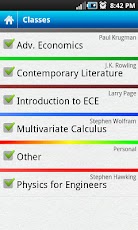
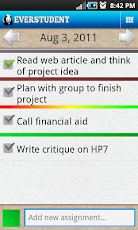
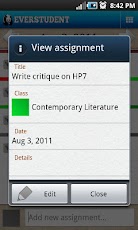
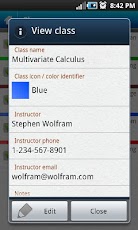
My favorite is Evernote. I use it for everything, literally, and many of my students use it for taking notes, clipping web pages, creating to do lists, and more. There is also a new Android app available, called EverStudent, that integrates with Evernote and acts as a planner for students. EverStudent allows students to manage tasks and assignments with a planner interface by class, color code classes, add instructor info to your notes and group classes by semester or term. All the information is synced to Evernote for access from any device and to share with others. It is available for Android only.


2. Skitch

Skitch also works with Evernote and allows you to create sketches and annotate, edit and save photos and your sketches. Students could use this to take notes or sketches that can't be done with just text. It's available for Android and Mac. iOS version is coming.


3. MySchoolNotebook


MySchoolNotebook is another note taking app I just reviewed earlier here: http://educationaltechnologyguy.blogspot.com/2012/02/myschoolnotebook-free-onlineapps-for.html


4. Memonic


Memonic is similar to other note taking tools in that you can clip web content, take text notes, share notes, and access it from any computer. There are also apps for iOS and Android. You can also email a note to your Memonic account from any computer.

There is also a feature coming that will allow you to use Memonic's web clipper to save notes directly to your Evernote account.


5. SimpleNote

SimpleNote is exactly what it's name says - it's a free, simple note taking app. Notes are just text. However, it does have some great features. You can access it from any computer or web-enabled device. You can easily start and make a note and even share it with others. Your notes are searchable with tags and content search, and there are some extensions and add-ons that you can use with it.


6. SpringPad


Springpad is a notes and organizing service that allows you to create and organize tasks in a different way than Evernote, and organizes your notes differently. You can take notes, clip web sites, create task lists, and more, just like in Evernote, but you can also import data from a bar code, search by location, and add photos. You can organize things by notebooks and tags like in Evernote, but Springpad also has "The Board" which is a digital cork board to help you organize the important things.

Springpad is free, and is available via web app and for iPhone, iPad, and Android.


7. TrackClass


Trackclass is a great, free resource for students. The site allows students to track their classes and assignments, and even will send reminders (email or SMS) for upcoming assignment due dates and test dates. There is also a note taking utility so students can take notes on it if they have a computer in school, or transcribe notes later. You can even attach files to each class and assignment to keep things organized. It is a great way for students to stay organized.


8. Soshiku 


Shoshiku is another free class organizer, similar to Trackclass. It has a calendar, notes, task list, and reminder system like Trackclass. It is not as full featured, in my opinion, as Trackclass, but it is easy to use and some students may like it better than Trackclass.


9a. Paper Planners - Even today, with students having smartphones and laptops and tablets, some still prefer to use paper planners. I use to use Franklin Quest planners until I got my first PDA (A Palm IIIxe in 2000). Some planners can be customized for your school too. We give every student a planner that includes schedules, calendar, homework and assignment lists, and even a hall pass log.

Here are some links to some paper planners. They are obviously not free. Students could also print out blank calendar and planner pages that you can find online and use them as a free paper planner.

Franklin Covey - great paper planning systems, but a little pricey for students.
Day Timer paper planners
DIY Planner - make and print your own planner pages
Planner Pads - paper planners
Day Runner - paper planners
Mead Student Planners
At-A-Glance
Student Planner USA - some nice ones on here (and not expensive)
SchoolMate Student Planners

9b. LiveScribe smart pen


Students could use a LiveScribe smart pen to take paper notes, but have those notes synced to their computer (and even to Evernote). This is a good option for math, science, and engineering, where you really can't take good notes using a keyboard. It also has a voice recorder to record what the teacher is saying. You can buy notebooks, or print out your own paper notes.


10. Google - Calendar, Docs, and Task List 


Google is another great way to get organized and take notes. Google Calendar is a great way to organize class schedules, assignment due dates with reminders and more. You can even color code classes and assignments. If the teacher uses Google Calendar for the class, you can just view that calendar with yours. Google Docs can be used for taking notes and the Tasks can be used as a task list. They can be accessed from any computer or mobile device.


Share these with your students (and use some yourself).


What are your favorite apps for taking notes and getting organized?


Paper, we don't need no paper! Tools and tips for going paperless

Posted in Labels: ,


Going paperless - it's good for the trees, good for budgets, increases efficiency and organization, and makes life easier in many ways. But how do you go paperless? I used to use paper planners (Franklin Quest) until I got my first PDA (Palm IIIxe) in 2000. I also try to go paperless in as many other ways as possible.

The first thing you need is electronics. You need to have ready access to a computer, tablet and/or smartphone. If you don't have paper, you need to be able to check your electronic data whenever you need too. A smartphone is one of the best tools to go paperless. You can access your calendar, notes, to do list, files and pretty much everything else. I use an Android smartphone and it makes my life so efficient and easy.

Another piece of hardware is a scanner, especially one that has document feed capabilities (vs. a flatbed scanner). With this, you can digitize all the paper you already have for easy access and storage. I even scan in student work for easy access at home to grade it and to keep and e-portfolio for the students.

Apps and software are the next piece of the paperless puzzle. You need to have a calendar, notes, to do list, access to your other files, and apps to read all your files. I use Google's products for calendar, task list, contacts, documents, email, blogs and web sites, and more. I use Evernote for notes (other notes apps) and also have scanned documents and other files uploaded to my Evernote notebooks. I use Dropbox and Sugarsync to back up all of my files and access them at any time, from my smartphone or any web enabled device.

Once you have your services and apps set up, you can access your files and data anywhere. You can get more organized, keep your data together, stay on schedule and more. You don't have to carry things around with you either.

You can do almost everything online now, including banking. Bills and paperwork can be sent electronically instead of paper, and you can get digital magazines instead of print.

If you don't have ready access to a mobile device, but spend most of your time near a computer, you can always print out your calendar/schedule for the week, along with your to do list and space for notes. 1 page of paper or so per week is better than tons of paper.

If you like taking notes with a pen and paper, take a look at the LiveScribe smartpen. You write on the special paper (buy it or print it out) and the pen stores what you write. It also has a voice recorder. It then syncs your notes to your computer and makes them digital and accessible anywhere. You can even share your notes via email and Evernote, along with some other services.

Going paperless is, in my opinion, a great way to get organized, help the environment, save money (after the initial hardware purchase, all the apps are free), save your back, and be more efficient.


Related:

Tools to go Paperless (in school and at home)

Evernote for Education

Android Smartphone and Apps I use as an Educator

Interesting Comment Regarding Going Paperless

Unfettered by Stuff - or "Why I don't lug stuff home every night"

Google for Educators resources

Why I use Google's resources as an Educator

Alternatives to Google's web services and apps

Tips for saving money and finding free resources for school

My Favorite Resources for Teachers and Students

Livescribe SmartPen

Notetaking Apps - a comparison of some of the popular ones

Getting Students and Teachers Organized - tips and resources


Awesome LiveBinder of Evernote Resources for Education

Posted in Labels: , , ,


I'm a huge fan and user of Evernote for, well, everything. I use it for my lesson plans, lesson resources, lesson schedule, meeting notes, class notes, student notes, research, web clippings, recipes, to do lists, project management, and so much more. I share notes with colleagues and students. I can access my notes anywhere on any web enabled device. I created an Evernote for Education resource page to collect great resources and to use when I do training on using Evernote in education.

I just found an incredible resource for anyone looking to use Evernote, especially in Education. Justin Stallings, an educator that I know from my Personal Learning Network on Twitter, has created an incredible LiveBinder of resources on Evernote for Educators. There are links to official Evernote pages and videos on how to use Evernote, to links and resources on using Evernote as an educator to get organized, as a learning tool, and much more.


If you use Evernote as an Educator, you really need to look through this LiveBinder on Evernote for some great ideas and tips. If you don't use Evernote, why not? Seriously, Evernote is an incredible resource for educators and students alike and this page can help you get started.

Check it out: http://www.livebinders.com/play/play/245623


I'm adding it to My Evernote Resources for Education page.


Related:

My Evernote Resources for Education Page

LiveBinders - Organize materials in online binders

Twitter - A Great Resource for Educators


Using Evernote for ePortfolios - great idea

Posted in Labels: ,


I'm a huge fan and user of Evernote for, well, everything. I use it for my lesson plans, lesson resources, lesson schedule, meeting notes, class notes, student notes, research, web clippings, recipes, to do lists, project management, and so much more. I share notes with colleagues and students. I can access my notes anywhere on any web enabled device. What I haven't used Evernote for yet is ePortfolios. But I found a teacher who is.

"Evernote as Portfolio - The story of using Evernote as a portfolio in my k-12 school" is a blog written by a teacher in Portland, Oregon who has been working to use e-portfolios in their classroom for the last six years. They are writing this blog to share their work, successes, and obstacles in using Evernote and mobile devices to create e-portfolios with their students.

The blog has great examples of using Evernote for e-portfolios, along with what worked and what didn't. 

This is a great resource for teachers looking to use e-portfolios with their students and wanting an easy to use, free system like Evernote.  

Catch - easily capture notes, information and more

Posted in Labels: , , ,

Catch

Catch is a service, similar to Evernote, that allows you to capture notes, photos, voice memos, and more and then access it anywhere. You can use the iPhone, iPad or Android app or access it through the web. Data is synced on your device so you can access it even when offline. They have browser extensions for clipping web content also (Chrome, IE, Firefox).

The free account is pretty powerful and offers the mobile notebook and journal, text, web clippings, photos and voice memos, 3 streams and 70MB per month of content uploaded. You can even Geotag your notes.

You can also upgrade to paid accounts to add brainstorming and conversations, along with increased streams and data upload amounts.

A stream is a way to group different data (notes, photos, etc) into a topic to keep them organized.

You can share your content with others, or keep it private. They also have Catch-U, a help site that can help get you started using Catch.

You can create a free account or login using Google or Facebook.

Catch seems like another great way to collect and organize data and notes.

catch.com


Related:


The 3 apps and services I can't live without

Posted in Labels: , , , , ,


Top 3


This week I've had two colleagues and three or 4 students ask me what technology apps and services I use the most or can't live without. The reason was that they were looking to get started using some new things and wanted to pick a couple that they could learn and use for a majority of their needs instead of learning and using lots of different apps. So, here are my 3 apps/services that I can not live without:


1. Evernote - Evernote, an electronic notebook with lots of great features, is my main tool. I have lesson plans, lesson notes, lesson resources, research, travel info, recipes, lesson schedule, meeting notes, attached files, clippings from web sites, to do lists, personal references, tech resources and instructions and so much more. It is the main app I use for almost everything.


2. Dropbox - Dropbox is a great file sync, backup, and sharing service that you can use for free. The rest of the files I need to use that are not in Evernote are setup in my Dropbox so that they are synced on my home and school computers and my smartphone. I can access my files from any web browser also. I never have to worry about losing a flash drive or forgetting to copy or email myself a file.


3. Google - I know this is kind of vague because Google has so many services, but I use a lot of them. Blogger for this blog and my class blogs, Sites for my class website, Gmail, Google+, Calendar, iGoogle, Docs, search and so much more.


With these three apps/services, I am organized and have all my data and materials available at any time. All three have great apps for my Android SmartPhone also.

When I help get people started using web 2.0 apps like these, I always want to start them with just one or two at a time. These three can do most of what people need. They are easy to use, yet powerful, and there is a lot of resources and support for using them.


What are the three apps or services you can't live without?


Runner-Up:


I use Tweetdeck in Chrome browser to access my PLN on Twitter. So, I guess I really have 4 I can't live without.


Related:

Why I use Google Resources and Tools as an Educator

Android Smartphone and Apps I use as an Educator


Why I Use Google's Products as an Educator

Posted in Labels: , , , , ,


College Tips by Google


Yesterday, I wrote a post entitled "Alternatives to Google's web services and apps" in which I listed a variety of services and apps that do what Google's tools and apps do for people who may not want to use Google's. I use Google's tools and apps extensively though, and here's why.


Google has a lot of great tools and apps that I use for both personal and school. I use iGoogle as my homepage and as an organizational tool, I use Gmail for email, I use Google Docs for word processing, presentations, and spreadsheets, along with surveys. I use Google Calendar, Blogger for this blog and my class blogs, Google Sites for my class web site, Google Tasks, Picasa and Piknik, Google+ as a great social media tool, Chrome web browser, Google Bookmarks, goo.gl URL shortener, Google Reader, Google Voice to communicate with parents, Google Maps and Google search. I also use other Google tools on occasion. 

I use them because they work great, are easy to use, integrate with each other, work perfectly on the Chrome web browser and on my Android smartphone, only need a single login for them all and login once on Chrome to get into them all, they are free, there is a huge amount of support available and there are great resources for educators for using these tools in education. 

Google's tools have great features like sharing and collaboration with others. I love being able to share a document or presentation with someone else and even work on it at the same time. I love being able to share calendar events and have multiple calendars visible at once. I love being able to easily create a blog or website for my classes. I love being able to connect with others on Google + and not be distracted by games and apps like on Facebook. I like the way Google's tools work, integrate, collaborate and present information. Gmail's conversation view stacks email replies together. Microsoft's Exchange email doesn't quite get this right. 

The Chrome web browser is secure and fast with great extensions and add-on's to make it even more useful. The goo.gl URL shortener and Evernote web clipper make sharing and saving web sites and information easy. Google Reader is easy to set up and read my feeds and Google Maps has some great features like street view, 3D building views, inside maps, and directions for walking and using public transit. Google search has always been easy and relevant. 

My students also love using Google tools. At the beginning of the school year I share lots of resources with them and Google is one of them. Most of them already have Gmail accounts, but are pleasantly surprised by the rest of the tools available. They end up using Docs for class assignments, creating blogs and websites as part of projects, and start using the other tools to get better organized. They always thank me for showing them these resources. The Google Student Blog is also a great resource for them.

The other thing that is nice about these Google tools is the ability to back up and export all of your data from each resource. That means that your data and what you have created are not locked into Google. Each tool has the ability to let you export your data in different formats so you can migrate it to a different service or just back it up. This is great piece-of-mind. 

Android and Google's resources, obviously, work great together. Every single Google app I use has an Android app that works great. This means that I can do everything with my smartphone and don't even need a desktop. This means that I can do my work at any time, any place, which makes me more productive. Google tools also work great on mobile browsers

In addition to Google's resources, my other main resources are TweetDeck and Evernote. I use TweetDeck to connect, share, and learn with my Personal Learning Network, and I use Evernote to organize data, take notes, plan lessons, and clip and save information from web sites. With these two web apps and Google's, I can do 99% of what I need to do on a daily basis. I don't need to use other resources. And, since my data is backed up on my computer, if Google decided to shut down any of these apps, I'd still be ok. 

Google provides excellent resources that are free, work great, and have great features. 


Related Articles and in-depth information:


New Evernote for Education resource page

Posted in Labels: , , ,


I am a huge lover and user of Evernote. It is my main resource for lesson plans, lesson schedules, notes and so much more.

I've written about Evernote many times on this blog, have shared it with educators at conferences and professional development, and show my students how to use it.

I decided to create a permanent page on this blog with an overview of what Evernote is, how to use it in education, and how to get started using it and find help.

Check out this page and share it with others.

http://educationaltechnologyguy.blogspot.com/p/evernote-for-education.html

My Favorite Resources for Educators and Students

Posted in Labels: , , , ,


I've recently posted lists of the most popular posts for past weeks and for the life of this blog, but I thought I'd post a list of my favorite resources too. Click the links for more detailed information and discussion about each resource.

1. EVERNOTE - Evernote is my favorite, and most used resource. I have all of my lesson plans, resources, web clippings, lesson schedule, meeting notes, misc. notes, task lists, reference materials and much more on here. I can access my notes anywhere and can even share notes with others.

2. CLOUD FILE STORAGE/SYNC - without apps like Dropbox and Sugarsync I'd be in trouble. All of my files are backed up on these systems and I can access my files from any web browser and from my smartphone. No need to carry flash drives or worry about a computer crash destroying my files and I can even share folders with others.

3. RESOURCES FOR STUDENTS - Trackclass, Dweeber, Google, Evernote and more are great resources for students to use to get organized, stay on schedule, and collaborate on school projects.

4. GOOGLE for EDUCATORS - I use tons of resources from Google, from Gmail, Calendar, Blogger, Sites, iGoogle to Google+, Search, and more. The resources are excellent quality, extremely useful, and free.

5. GOOGLE + - I love Google+. It is cleaner and lacks the messy apps and games of Facebook, but allows you to have more in depth posts and conversations than Twitter. It's great for education, especially the hangouts feature.

6. DISCOVERY EDUCATION - The Discovery Educator Network, DE Streaming Videos, and over 25 free resources for Educators. There is so much here to help educators in so many ways.


And here's an article I wrote detailing all of the resources I use on a daily basis.
http://educationaltechnologyguy.blogspot.com/2011/05/technology-i-use-everyday-as-educator.html?m=0


What are your favorite resources? How do you use them in your job and daily life?


Notetaking Apps - a comparison of some popular ones

Posted in Labels: ,


Notetaking apps are a great way to get organized and keep track of everything electronically. There are a lot of different ones out there, so I thought I would go through some of the more popular ones and list some of the features they have. Click on the links for more information on each one also.


1. Evernote - this is the note taking app that I use the most. It is free, available on all platforms (web, Mac, iOS, Windows, Android, webOS, and more), easy to use, full featured and high quality. You can organize your notes into different notebooks, tag each note, attach files to notes, and clip content from web pages with the browser extension. You can also share your notes with others. The iOS and Android apps are great. It can even search text in a photo. Evernote also integrates with other services and lets create notes through email and save your Livescribe pen notes to your notebook. Here are some Great Ideas for Using Evernote in Education.


2. SpringPad - this is another very good note taking app that I have used. Springpad is free, and is available via web app and for iPhone, iPad, and Android. Springpad allows you to create and organize tasks and notes. You can take notes, clip web sites, create task lists, and more, just like in Evernote, but you can also import data from a bar code, search by location, and add photos. You can organize things by notebooks and tags like in Evernote, but Springpad also has "The Board" which is a digital cork board to help you organize the important things.


3. Livescribe Smart Pen - These are electronic pens that record what you write, and hear, and then you can load this into your computer to keep a digital copy of your written notes and even share your notes with others. You can easily send your notes to Evernote, email, Google Docs and more. It's great to be able to take notes in math and science on paper, and then have them saved digitally. The ability to record audio that is synced with your written notes is also very useful. (full review here)


4. Word Processing software - you can also take notes using word processing software, such as MS Word, Google Docs, OpenOffice / LibreOffice, etc. You can take notes and use the outline format, insert symbols and tables, and much more. With Word and OpenOffice / LibreOffice, you have to have the file synced to the cloud somehow to be able to access the notes somewhere else. Dropbox and SugarSync are great file sync services to use to do this. Google Docs, on the other hand, is in the cloud, and therefore accessible from any web browser. You can also share Google Docs with others. Google Docs and OpenOffice/LibreOffice are all free, while Word is not. There are even templates for all of these for note taking. Here is a note template I created from my early days as an engineer.


OneNote icon
5. OneNote - Microsoft OneNote is a note taking app that I had used a few years ago and just started looking at again. It is not free, but comes bundled with Microsoft Office (all versions) and is available for the iPad, iPhone, Windows Phone 7 and there is a web app. After asking around online and trying it out this week, I found that the organization is nice. You can create tabs in each notebook, just like a paper notebook would have. It is also very good for tablets, allowing you to use a stylus to capture handwritten notes. There are note templates available and you can share your notes to access on the web using SkyDrive.


TapNote
6. TapNote - TapNote is a simple note taking app for the HP TouchPad and webOS SmartPhones. It is simple and uncluttered and the notes are automatically synced with your Dropbox account so that you can access them anywhere (they are saved as .txt files). It does have some great features for sharing and creating notes and you can try the lite version before purchasing.


7. Built in notes apps on smart phones - smart phones all have their own built in notes apps. Most don't sync to anything and are very plain text, but they are great for jotting down quick notes. They also have other simple note taking apps you can download. A good, simple note taking app for Android is Melon. You can quickly create notes, and organize them like sticky notes.


There are many more too. When choosing a note taking app, it comes down to features and personal preference. Select the one that works best for you, with your style and requirements.


What is your favorite note taking app?


Evernote User Resources - Blog and Forums - community of Evernote users

Posted in Labels:

Logo

Anyone who has read this blog for more than a week or knows me, knows that I use Evernote for everything. Literally. It's a great tool to use to get organized and keep your notes, information, and records in one place.

Evernote has a lot of features and a lot of versions: web, Windows, Mac, Android, webOS, Blackberry, iOS and more. Most people use more than one version. I use the Windows version at home, access the web version at school, and use the Android app on my smartphone. Evernote also has apps that work with it, like Skitch and Evernote Clearly, an extension for browsers, Livescribe smart pens, and much more.

So, how to you learn about all Evernote features and add-ons and how to use them and where do you go for support?

There are a few places to go:

1. The Evernote Blog: tips, news, and user stories about how they are using Evernote.

2. The Evernote Forums: browse for topics of interest, ask questions, search for tips or answers. The community is thriving and this is a great way to learn more about using Evernote.

3. Evernote Support: the support site and support team are excellent and will get back to you quickly on any issues. There is a troubleshooter, chat with support, knowledge base and downloadable resources.


If you use Evernote, check out these sites. If you don't use Evernote, why not start using it.


Using Technology to Organize Your Lessons and Resources

Posted in Labels: , , ,


Technology is a wonderful thing. I've been lucky in that my father, a chemist, and my mother, an elementary teacher, both realized that my siblings and I should be exposed to technology early on. I was using a TRS-80 computer in 7th grade (1986-87) and my parents bought us a Radio Shack Color Computer that same year. I took BASIC in high school, using Apple IIe's and then went off to college and majored in Engineering and was an Engineer for 10 years before becoming an educator. I used technology all the time. I started using a PDA in 2000 (Palm IIIxe) and continued on to other PDAs and now smartphones. This early and deep exposure to technology has made it very easy for me to integrate technology into my practice as an educator.
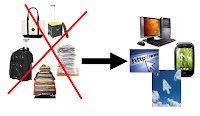

I rarely carry anything home from school because of these tech tools. Administrators ask to see my lesson plans and they are all on the computer. Another teacher asked me how I do this, so after showing them, I thought I'd share it with my readers.


I use a few different tech tools to organize my lessons and resources for school and use a variety of tech tools on a daily basis. Here is the list, with what I use them for. Click the hyperlinks for more information and details on the tool and how to use it.


1. Evernote - Evernote is my main lesson and resource organizational tool. I have notebooks setup for lesson plans and lesson resources, along with notebooks for things to do, things to research, and things to share. My lesson plan notes are set up by unit and have the objectives, links, resources, and attached files (like handouts and lab packets). I also have notes setup by week that I use to keep track of where each class is and to schedule my plans out. I can easily share resources and information with my students or colleagues.


2. Dropbox - I don't have every single file I use for my lessons on Evernote. Some of the materials, including videos and animations, are too big to upload to Evernote. I have all of my files on my home computer backed up to Dropbox, and then I sync the "School" folder to my school computer. This folder has resources, lecture materials, videos, and much more for each unit. I can also put files into a shared folder and share them with my students and colleagues. I also have students submit work to me to a Dropbox folder using Filestork and DropItToMe.


3. Google - Google is my other main organizational tool. I use iGoogle, Google Calendar, Gmail, Google Docs and Blogger to organize my lesson materials and other resources, including my calendar. I use Blogger to create class blogs where I post their lesson schedule, assignments, and due dates, along with resources and links. I can share my calendar with students also. I also have files uploaded to my Google Docs account and use Google Docs to create lesson resources. I can then share or publish these documents, presentations, or spreadsheets for my students or colleagues to use. I also use Google sites for a class site that includes resources, files and links for both the students and myself.

Google for Educators - Resources for using Google in school


4. PowerPoint - I started organizing my lessons with PowerPoints when I used more lecture in my classrooms. I've moved to about 75% student centered learning now with projects, labs, and activities but PowerPoint can be used to organize lessons. Objectives, lecture slides, links to labs and other resources, embedded videos, and much more. I could just mark in my calendar what slide a class was on. That slide may be lecture notes, an assignment, a lab, or a quiz. I don't use this much anymore because I have my lesson plans organized in Evernote.


These are just some ways to organize your lesson plans and resources.


Other tech tools to organize lessons:


Learnboost-online gradebook and lesson planner - announces lesson plan sharing


Related Articles:

Unfettered by Stuff - or "Why I don't lug stuff home every night"

Evernote - Get Organized for Free on All Platforms


What tools do you use to organize your lessons?


Evernote Clearly - one click for distraction free online reading - very cool

Posted in Labels: ,


Evernote, one of my favorite web apps (along with Google's many apps), just announced a very cool new product.

Evernote Clearly is a browser extension for Google Chrome (other browsers will be added soon) that allows you to read online with less distractions. You simply click the extension and it hides all the distractions from blogs and articles, allowing you to read with less distractions and more easily.

When you click on it, it slides in, showing you a new view of the page without any ads, links, or navigation. When you are done reading, simply click the return arrow and Clearly slides out of the way allowing you to continue browsing the site normally.

Get Evernote Clearly from the Chrome Store »


Another nice feature is that Clearly will automatically turn a multi-page article into a single page, making reading much more enjoyable (especially for those articles that like to use 10 pages for a short article to increase their ad impressions).

Since Clearly is made by Evernote, it works with Evernote also. When Clearly is open, there is a Evernote clipping function so that you can clip the cleaned-up article right into your Evernote account to read later.

You can also use their built in themes or create your own to create a pleasant reading experience. Everything is done in your browser and it works really well.

There are other apps that do similar things to make online reading easier, but I've found this to be the most polished and the integration with Evernote to clip and read later is a big plus.


Evernote promises that it will be coming to other platforms and browsers soon too.


Get Evernote Clearly from the Chrome Store » 

UPDATED 12-21-2011 - Evernote Clearly now available for Firefox - https://addons.mozilla.org/en-US/firefox/addon/clearly/ 


Related:

Evernote - get organized for free and on all platforms (one of those apps you really need to use)