Showing posts with label organization. Show all posts

Awesome LiveBinder of Evernote Resources for Education

Posted in Labels: , , ,


I'm a huge fan and user of Evernote for, well, everything. I use it for my lesson plans, lesson resources, lesson schedule, meeting notes, class notes, student notes, research, web clippings, recipes, to do lists, project management, and so much more. I share notes with colleagues and students. I can access my notes anywhere on any web enabled device. I created an Evernote for Education resource page to collect great resources and to use when I do training on using Evernote in education.

I just found an incredible resource for anyone looking to use Evernote, especially in Education. Justin Stallings, an educator that I know from my Personal Learning Network on Twitter, has created an incredible LiveBinder of resources on Evernote for Educators. There are links to official Evernote pages and videos on how to use Evernote, to links and resources on using Evernote as an educator to get organized, as a learning tool, and much more.


If you use Evernote as an Educator, you really need to look through this LiveBinder on Evernote for some great ideas and tips. If you don't use Evernote, why not? Seriously, Evernote is an incredible resource for educators and students alike and this page can help you get started.

Check it out: http://www.livebinders.com/play/play/245623


I'm adding it to My Evernote Resources for Education page.


Related:

My Evernote Resources for Education Page

LiveBinders - Organize materials in online binders

Twitter - A Great Resource for Educators


MentorMob - Learn what you want, teach what you love -

Posted in Labels: , ,


MentorMob is an alpha site I just found out about that allows you to create a "learning playlist". The learning playlist is a way of organizing information and resources from the web into one list.

It is free, and easy, to create a learning playlist. You add resources to your playlist from around the web to create an informational resource, a kind of virtual learning book too. For example, there is a Learning Playlist on "How to Root your Android Phone" that starts with an article from a website about rooting and what it is, then a video on YouTube on how to actually do it, and then a different website that has apps and tools you can now use on your rooted phone.

Learning Playlists are shared on the site, so you can look for already created ones or create your own.

This is a great resource for teachers to use as learning resources, "textbooks" and more with their students. Students could create Learning Playlists as a way of showing that they understand a concept by collecting "good" resources about a topic that explain the topic for others.

Give it a try!


Wunderkit - free web based to do manager now available to public

Posted in Labels: , ,


Wunderkit is a new web based to-do manager that I just found out about from Lifehacker.

It is from the same group that made Wunderlist, which is a great to list app that I wrote about last March.

Wunderkit was in private beta but is now open to the public. It is a free web app and there are also stand alone download apps for Mac and iPhone.

It is great for managing projects as you can create multiple workspaces for different projects and collaborate with others on the project in Wunderkit. You create to-do lists and milestones for each project and then organize things in the order you need. There are also sections for notes and chat windows.

There is also a pro account for $4.99/month if you need more features but so far all the reviews say that the free version is all most people will need.

This is a great resource for students working on projects, teacher teams and administrators who are trying to organize and work collaboratively on projects.


Catch - easily capture notes, information and more

Posted in Labels: , , ,

Catch

Catch is a service, similar to Evernote, that allows you to capture notes, photos, voice memos, and more and then access it anywhere. You can use the iPhone, iPad or Android app or access it through the web. Data is synced on your device so you can access it even when offline. They have browser extensions for clipping web content also (Chrome, IE, Firefox).

The free account is pretty powerful and offers the mobile notebook and journal, text, web clippings, photos and voice memos, 3 streams and 70MB per month of content uploaded. You can even Geotag your notes.

You can also upgrade to paid accounts to add brainstorming and conversations, along with increased streams and data upload amounts.

A stream is a way to group different data (notes, photos, etc) into a topic to keep them organized.

You can share your content with others, or keep it private. They also have Catch-U, a help site that can help get you started using Catch.

You can create a free account or login using Google or Facebook.

Catch seems like another great way to collect and organize data and notes.

catch.com


Related:


Pearltrees - visually organize resources from the web

Posted in Labels: , , ,


Pearltrees is a great, free site that lets you organize web content in a visual pattern. There is a Chrome browser extension that makes it easy to add sites to your tree. Trees can be shared and even worked on collaboratively.

What is nice about this vs. other bookmarking tools is that you can organize your sites visually and connected by related topics or ideas.

There are no limits to how many trees you can create, and you can either use the extension or just add in links manually.

This is a great tool for educators to use to organize web resources for themselves, their classes and students, or for colleagues. It is also great for students to use for organizing for themselves, or for a class project.


Here is an example Pearltree on Educator Resources:


New Evernote for Education resource page

Posted in Labels: , , ,


I am a huge lover and user of Evernote. It is my main resource for lesson plans, lesson schedules, notes and so much more.

I've written about Evernote many times on this blog, have shared it with educators at conferences and professional development, and show my students how to use it.

I decided to create a permanent page on this blog with an overview of what Evernote is, how to use it in education, and how to get started using it and find help.

Check out this page and share it with others.

http://educationaltechnologyguy.blogspot.com/p/evernote-for-education.html

Livebinders - organize materials in online binders

Posted in Labels: , ,


LiveBinders Beta

Livebinders is a site I've been playing with for a while. Livebinders acts as a virtual 3-ring binder for you to organize your materials in. Each item can be in a tab or sub-tab in the binder you create.

You can store webpages, PDF files, images, text, videos and more into the pages of the binder.

There is a "getting started binder" and example binders on the site that you can use to get ideas and get started.

I'm using Livebinders to organize all of my lesson materials, as well as professional development resources and my presentation materials. As a former engineer, I used lots of 3-ring binders to get organized. Now I can do it virtually.

Below is an example Livebinder for a physics class, showing the content and tabs. You can view the original binder here. 


Using Technology to Organize Your Lessons and Resources

Posted in Labels: , , ,


Technology is a wonderful thing. I've been lucky in that my father, a chemist, and my mother, an elementary teacher, both realized that my siblings and I should be exposed to technology early on. I was using a TRS-80 computer in 7th grade (1986-87) and my parents bought us a Radio Shack Color Computer that same year. I took BASIC in high school, using Apple IIe's and then went off to college and majored in Engineering and was an Engineer for 10 years before becoming an educator. I used technology all the time. I started using a PDA in 2000 (Palm IIIxe) and continued on to other PDAs and now smartphones. This early and deep exposure to technology has made it very easy for me to integrate technology into my practice as an educator.


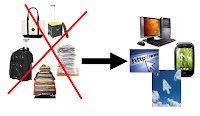
I rarely carry anything home from school because of these tech tools. Administrators ask to see my lesson plans and they are all on the computer. Another teacher asked me how I do this, so after showing them, I thought I'd share it with my readers.


I use a few different tech tools to organize my lessons and resources for school and use a variety of tech tools on a daily basis. Here is the list, with what I use them for. Click the hyperlinks for more information and details on the tool and how to use it.


1. Evernote - Evernote is my main lesson and resource organizational tool. I have notebooks setup for lesson plans and lesson resources, along with notebooks for things to do, things to research, and things to share. My lesson plan notes are set up by unit and have the objectives, links, resources, and attached files (like handouts and lab packets). I also have notes setup by week that I use to keep track of where each class is and to schedule my plans out. I can easily share resources and information with my students or colleagues.


2. Dropbox - I don't have every single file I use for my lessons on Evernote. Some of the materials, including videos and animations, are too big to upload to Evernote. I have all of my files on my home computer backed up to Dropbox, and then I sync the "School" folder to my school computer. This folder has resources, lecture materials, videos, and much more for each unit. I can also put files into a shared folder and share them with my students and colleagues. I also have students submit work to me to a Dropbox folder using Filestork and DropItToMe.


3. Google - Google is my other main organizational tool. I use iGoogle, Google Calendar, Gmail, Google Docs and Blogger to organize my lesson materials and other resources, including my calendar. I use Blogger to create class blogs where I post their lesson schedule, assignments, and due dates, along with resources and links. I can share my calendar with students also. I also have files uploaded to my Google Docs account and use Google Docs to create lesson resources. I can then share or publish these documents, presentations, or spreadsheets for my students or colleagues to use. I also use Google sites for a class site that includes resources, files and links for both the students and myself.

Google for Educators - Resources for using Google in school


4. PowerPoint - I started organizing my lessons with PowerPoints when I used more lecture in my classrooms. I've moved to about 75% student centered learning now with projects, labs, and activities but PowerPoint can be used to organize lessons. Objectives, lecture slides, links to labs and other resources, embedded videos, and much more. I could just mark in my calendar what slide a class was on. That slide may be lecture notes, an assignment, a lab, or a quiz. I don't use this much anymore because I have my lesson plans organized in Evernote.


These are just some ways to organize your lesson plans and resources.


Other tech tools to organize lessons:


Learnboost-online gradebook and lesson planner - announces lesson plan sharing


Related Articles:

Unfettered by Stuff - or "Why I don't lug stuff home every night"

Evernote - Get Organized for Free on All Platforms


What tools do you use to organize your lessons?


Graphic Organizers - for all different projects and needs

Posted in Labels: , ,


Holt has a huge number of Graphic Organizers for teachers and students to use. The graphic organizers are in PDF form and can be filled out and saved. They include web diagrams, spider maps, cluster diagrams, main ideas, flowcharts, cause and effect, decision charts, KWLs and many more.

Graphic organizers are a great way to get organized. Teachers can use them with their classes, for lesson planning and organizing, and students can use them to organize their thoughts and thinking process.


thinklinkr - collaborative, online outlines.

Posted in Labels: , ,


Thinklinkr is a site that allows you to create collaborative online outlines. It's a freemium site, meaning that there is a free version and there are fee-based versions that add more functionality. The free version offers unlimited outlines, but they are all public. You can not make any private. For most educational uses, this is probably ok.

It is very easy and simple to use. Use it to create outlines for projects, run meetings, do brainstorming, organize your thoughts and much more. Students, teachers, and administrators can all use it for different activities. Students can work on a project or paper together. Staff can work on meetings together. It is a very useful site.


Simplenote - easy to use note taking and list service and app

Posted in Labels: , , ,


I just learned about Simplenote from Digitizd by David Pierce. In his article, he talks about why he switched from Evernote to Simplenote and I thought that many people may just need a simple note taking app like this and that I should share it with them. 


I use Evernote for everything from lesson plans to meeting notes to clipping articles from the web to storing attached files to notes to sharing notes with others and much more. Evernote has tons of apps and services that work with it. I need and use all these features, but not everyone needs all of this. 


Simplenote is exactly what it's name says - it's a free, simple note taking app. Notes are just text. However, it does have some great features. You can access it from any computer or web-enabled device. You can easily start and make a note and even share it with others. Your notes are searchable with tags and content search, and there are some extensions and add-ons that you can use with it. 


If you are looking for an easy to use, simple, basic, note taking app, Simplenote may be for you.


Related Articles
Springpad - Free notes and organizer software

Evernote - get organized - free and on all platforms

Evernote Updates Web app - great improvements

Livescribe Echo Smartpen - very cool and very useful


Livescribe Echo Smartpen - very cool and very useful

Posted in Labels: , , ,


I recently acquired a Livescribe Echo Smartpen to use and found it to be very useful. The Livescribe smartpens are pretty cool. They record what you write, and hear, and then you can load this into your computer to keep a digital copy of your written notes and even share your notes with others. 


The ability to record your hand written notes is very useful in Math and Science, since it’s very hard to take notes in these areas with a keyboard or even a tablet/pad. It can also make an audio record of what you say or hear as you are writing and it timestamps and syncs the written notes with the audio notes. 


Your notes get synced to your computer using a mini-usb cable and the Livescribe desktop application. There is also an application that you can get that will transcribe your handwritten notes into digital typeset notes. You can even search for words in your notes. The desktop application allows you to organize your notes and shows a thumbnail of each notebook. You can then view each notebook page and page forward and backward.


The pen is controlled by tapping on certain symbols in the notebook, which is pretty cool. You use this to select other applications in the pen, start, stop, and playback audio recordings and more. Inside the front cover of the Livescribe notebooks is a “calculator” that allows you to use the pen as a calculator. There are also controls on each page that allow you to change the volume on the pen, jump around your recordings, and even bookmark a spot in your notes.


You can share your notes and recordings as a pencast, PDF, or audio file. The desktop application has one-click sharing with Evernote, Facebook, Google Docs and Email. This means you can always have your notes available to you. You can also sync your pen notes to multiple computers. During meetings, one person can be the official note-taker and then share the notes out with everyone else. 


There are apps available also that you can download to add more functionality to your pen, including dictionaries, translators, games, productivity tools and more.


There is a vibrant user community and support team as well as resources for using the Livescribe Pens in Education. These pens are great for taking notes and then sharing and saving them. I can see a lot of great uses for these in education. The site has some great tips and uses for using the pens in school and even has reports of how the pens have helped increase student achievement. The Livescribe help website is easy to use and understand and makes using these pens very easy. Set up only takes a couple of minutes.


I had seen an early model a few years ago, but wasn’t interested because you needed to buy special paper in order for it to work. While you can still order the special paper, you can now print out your own too (as long as your printer is an Adobe PostScript-compatible color laser printer with a print resolution of 600 dpi or greater, which, luckily, mine is.)


The model I have is an 8GB pen. You get the desktop software, stylus tip, two ink cartridges, the cable, a starter notebook, and 500MB of personal online storage. The 8GB Echo retails for $199 so it’s not cheap, but it is another tool that can be very useful in education, business, and even just for taking personal notes. The 2GB pen is only $99. There are discount prices available to educators, anyone interested can email educationsales@livescribe.com  for details.


UPDATED: You can get 15% off the price of a Livescribe Pen by using this link (directly to Livescribe, not secondary vendor)


The main reason that I see these as an essential tool for many people is the ability to record hand written notes. Many people, myself included, take notes very efficiently with pen and paper, using symbols, diagrams, arrows, and the like to make the notes more meaningful. It’s also great for people who have to take notes using math and science equations and symbols. Being able to easy capture, save and then share those notes is a great thing.


Taking organizing and planning lessons from Ben Franklin - great tips for educators too

Posted in Labels: , , ,


I recently saw Ben Franklin’s daily schedule and planner on Larry Ferlazzo’s website (which is an awesome resource for educators). I was a long time user of Franklin Quest (now Franklin Covey) paper planners and used their planning software and methods on my first PDA and had heard that they had gotten some of their ideas for planning from Ben Franklin, but had never seen Ben’s planner. It was very cool seeing it. 

Ben Franklin was a prolific inventor and scientist and believed in being organized and on task. Many of his quotes and ideas are still in use today.


If you look at Ben’s schedule, you’ll see that he has two questions he asks himself and then some things he does every day. He asks himself “What good shall I do this day?” and then “What good have I done today?”. These are great questions to ask oneself when planning your day and then reflecting on your day, especially as an educator. Review your lesson plans for the day and get prepared. At the end of the day, review how the lessons went. Was there anything that should be changed or addressed next time? I also like how he has standard things he does everyday, like “taking the resolution of the day” and “prosecute the present study”. I take these as looking at what my goals are for the day and getting ready to do them. At the end of the day, he puts things away, relaxes, and reflects on his day.


This is something we all should do every day. Get up and get ready for the day. Think about what are tasks and goals are for the day, prepare ourselves for these goals, and then go and attain them. At the end of the day, we need to make sure everything is in it’s place, relax and reflect on the day. Putting everything away each night (or at end of school day) helps us to stay organized and on task. We need to relax and refresh our brain with music, entertainment and conversation. And then we need to reflect on our day. How did it go? Did I accomplish everything I wanted to? Is there anything I should change or do better?


Today’s apps allow us to stay more organized - calendars, to-do lists, notes, and more. We can have these apps email or text us with reminders so we don’t forget. We carry our smartphones with us everywhere, so we always have access to our data and apps. Heck, there are even apps that can use the GPS chip in your phone to remind you of a task or appointment if you go anywhere near that location (including your shopping list).


There are hundreds of paper planners, software and apps, and systems out there to help you get organized and plan your day. But, you are the main ingredient in the planning and execution of your plan.


Here are some tips and resources for planning and organizing your day:


Basic ideas from Franklin Quest:

1. Connect to Mission - what is your mission today, this week, in life?
2. Review roles - teacher, spouse, parent
3. Identify goals - daily, weekly, monthly, year
4. Organize weekly - and plan daily
5. Exercise integrity - integrity and values matter
6. Evaluate - your tasks, goals, values, and progress


Use some kind of planner - purchased or made yourself, paper or electronic, to keep organized and on schedule.


Have a daily task list, prioritized. Work on high priority 1st.


Have a daily, weekly, and monthly schedule with appointments and obligations.


Keep a daily record of events - commitments exchanged, journal entry, thoughts and ideas, agendas, conversations, notes, tasks, etc.


Related Articles and Resources:

Getting Students and Teachers Organized - tips and resources

Great tips, ideas, resources, links (including to paper and electronic planners)

Evernote - get organized - free and on all platforms


iGoogle as a educational/organizational tool - revisited

Thoughtboxes - organize everything you do - great resource for education

Wunderlist - free and easy to use task manager

Toodledo - An easy to use, free, powerful, online to-do list.


Thoughtboxes - organize everything you do - great resource for education

Posted in Labels: , ,


Thoughtboxes is a free site that allows you to get organized using boxes that act like sticky notes. You can create categories and then create "thoughtboxes" in each category. You can use the boxes for to-do lists, notes, lists, links, and more.

It is very easy to use and very versatile. Create a main topic or "train of thought" and then create boxes of your thoughts on that topic. You can see all of your lists on one screen. The format makes it easy to brainstorm and organize ideas. You can even share and collaborate with others.

The site has examples and help section to help you get started.

This would be a great tool for educators to use while planning lesson activities or keeping track of ideas and resources. Students could use it for homework lists, getting organized, and as a type of mind map when getting their thoughts organized for a project or paper. The sharing and collaboration feature allows teachers to work on ideas with other educators and even hold virtual meetings. Students can work on projects together from home. I see this as a very useful tool for education.

The free version allows 3 trains of thought (the main topic) and you can share with others. Unlimited trains of thought are only $15 per year.

Here's and example:

To-dos-example

Wunderlist - free and easy to use task manager

Posted in Labels: , ,


In my previous life (before becoming an educator) I was an engineer and I'm still a type A personality and love anything that helps me stay organized. Wunderlist is a very cool task manager that I found out about last week. I've been playing with it and found it very easy to use and it works very well.

Wunderlist has a web app and downloads for PC, Mac, iPhone, iPad, and Android. No matter how you access and create your lists, they are sync'd across your account.

After you sign up for free and create your account, you can use the web app or download and start creating lists. Once the list is started, you can add tasks to each list. You can work offline and then sync the lists to their network for access from anywhere later. You can also create a list and tasks by sending an email to Wunderlist. You can set reminders and notifications for tasks, and even add notes to a task. You can email tasks and even print them out if needed.

You can even share lists with others and work on the list together, making it a great tool for teams and project groups to use. You can even share the lists on Facebook and Twitter.

It took me less than 5 min to get up and running and using Wunderlist. I really like the sharing of lists feature and think it would be great for teacher teams or students working on projects together.

Check it out.


iGoogle as a educational/organizational tool - revisited

Posted in Labels: , , ,

I love iGoogle. It is my main start up page and I use it to stay organized. I have my Google Bookmarks, Google Reader feed, Google Notebook, Google Tasks, Gmail, Google Calendar, Google Finance stock prices, EvernoteGoogle Docs, Google Voice, Contacts, Weather, and Google Translate and Twitter Gadget all on my iGoogle page. This allows me to quickly select web pages from my bookmarks, check my email and calendar, review notes and tasks, access my Evernote notebooks, check Twitter, check my Google Voice, and access my Google Docs all from one page. I can even post to this blog from it.

A lot of information is available to me at a glance. Throughout the day, I am able to keep informed and organized because I don't have to look all over the place. Everything is right in front of me.

I also think that iGoogle is a great tool for students. They can do everything I listed above, keeping their assignments, resources, and calendar all on one page for easy viewing and access. No more forgetting about things. Everything is right there for them. There is even a Facebook gadget. This means that they can be socializing on the same page that has their homework and notes.

Colleagues always ask me how I stay so connected and organized and iGoogle is my answer. Students of mine who use it have said that they love it and it makes them less likely to forget about assignments and upcoming tests.

It is easy to set up. All you need is a Google account and you are on your way. Go to Google's home page and click in the upper right hand corner on "iGoogle". Select a theme, and then start adding the gadgets that you want. Click and drag to move the gadgets around. It is really that simple.

Try it out and share your ideas with others.

Share your iGoogle gadgets that you love.

Related Articles:


Notely - free, full function, student organizational tool

Posted in Labels: , ,


Notely is a student organizational tool, designed by a college student in the UK.

Notely is free, easy to use, has a mobile site and has lots of great features. Notely includes a Calendar, To-Do list, Homework organizer, Notes section, and allows you to organize links, contacts, files, and your classes. You can upload files to keep them organized with your class notes.

Tasks in your to-do list have due dates and are listed in that order. The notes function is a fully functional word processor that allows you to add formatting, links, highlighting, and images to your notes. The calendar can even remind you of upcoming events.

You can sync your calendar with iCal downloads of your calendar and to-do list and export notes to PDF, DOC, and TXT formats.You can also email notes and export all the data in an Excel spreadsheet.

The site has some nice videos that show you how to use it.

I am a huge proponent of Web 2.0 tools that help students get organized and Notely fits that category. It takes all the tools a student needs and puts them in one place.

Stay organised with Notely's schedule
Notely makes writing brilliant notes easy
 with Notely is a breeze!

Similar tools:

Evernote

Trackclass, Soshiku, Dweeber

Springpad

Google - calendar, email, tasks, docs

Springpad - free notes and organizer software - very cool

Posted in Labels: , ,


I'm a huge fan of Evernote. I use it to take notes, clip web articles and get organized.

I recently found out about Springpad, which is similar to Evernote, but with some differences. Springpad is free, and is available via web app and for iPhone, iPad, and Android.

Springpad allows you to create and organize tasks in a different way than Evernote, and organizes your notes differently. You can take notes, clip web sites, create task lists, and more, just like in Evernote, but you can also import data from a bar code, search by location, and add photos. You can organize things by notebooks and tags like in Evernote, but Springpad also has "The Board" which is a digital cork board to help you organize the important things.

Springpad also lets you post from it to Facebook, Twitter and email to share your data and notes and you can even set reminders and alerts for notes you've taken.

Springpad is easy to set up and use and I see it as a worthwhile competitor or companion to Evernote. It is a great tool for students and teachers to take notes, organize information, and get themselves organized and efficient.

Getting Students and Teachers Organized - tips and resources

Posted in Labels: ,

GET ORGANIZED!!


I just saw a Tweet asking for tips on helping students to get organized, so I decided to write some tips up. I am a very organized person (type A personality and was an engineer for ten years) and I used to teach organizational skills to other employees at one of my jobs. There are a ton of different organizational methods out there, but it is actually pretty easy to be organized and stay that way using some free tools.

I use a variety of tools to keep myself organized and share them with other teachers and with my students. I have some links below to other articles I've written that are similar in nature, so please read those too.

The first thing that is important is to decide what tools you are more comfortable with: paper or electronic. If a student/teacher doesn't have a smartphone or easy access to a computer, it is harder to use some of the electronic versions. However, one solution is to use the electronic versions at home/office and print out things for mobile. I used to do that before I got my first PDA. I would print a task list and calendar in Word and keep it updated and then print it out when I had to use it away from a computer. I used to also use a Franklin Covey planner before my PDA days.

The trick to being organized is to always use your system and not deviate from it. If you are using a smartphone, then always use that, don't use paper too. Take 5 min each morning, lunch, afternoon, and evening to get organized, check your schedule and task list, and make plans for the next time period. Keep your task list and schedule up to date and check it before making plans. Prioritize your task list based on what is most important or needed done 1st. Use a calendar or prompts or reminders to make sure you get things done on time.

Electronic organizing tools can be helpful because they can remind you of due dates, meetings, etc. through text messages, emails, and on-screen alerts. They can also link notes, web sites, and more together so it's easier to find things.

Here is how I stay organized: 
(I use electronic resources and can access them from anywhere)

1. I have a Palm Pre+ running on Verizon so I can access all of the tools I use at any time. That means I'm always able to take notes, create a task or calendar event, and review all of my stuff any time, anyplace. I can access all of my emails, my Google Calendar, Google Task List, and Evernote from it. I can also access all of my files via Dropbox. (and all of this is accessible from any computer and always in sync through Palm's Synergy system).

2. I use iGoogle to keep everything in one place on my computer. My calendar, Tasks, email, and Evernote notes are all available to me on one page on my computer. This means I can see everything very easily and keep myself up to date. I also have events in Google Calendar set up to send me a text message reminder.
(here's an article I wrote about using iGoogle to stay organized. )

3. I use Evernote to take notes, organize notes, organize info and web clippings, and as a lesson planning tool. I have access to this from any computer and from my Palm Pre+. I organize notes into notebooks and also have tags, making them easier to find when I need them.

4. I even have an app for my phone that will alert me when I am near a place that I have a task for (via GPS).

I tell my students about all of these, and I also share some great tools specifically for students, like Trackclass, Shoshiku, and Dweeber that can help them get organized with their classes, schedule, and notes.

Paper Planning Resources (not free)
Franklin Covey - great paper planning systems, but a little pricey for students.
Day Timer paper planners
DIY Planner - make and print your own planner pages
Planner Pads - paper planners
Day Runner - paper planners
Mead Student Planners
At-A-Glance
Student Planner USA - some nice ones on here (and not expensive)
SchoolMate Student Planners


You can also create and print out your own calendars and task lists. There are a huge number of sites that have these, and MS Word has templates for it.

There are also some great student planners that you can customize for your school, adding in school calendar and schedules. They also have some great reference pages in the back, including math, English, science, study tips, college planning and more references. Here's one we've used:  Premier Agendas for College Ed. There are a variety out there, and I don't endorse any specific one.


Electronic Planning Resources (free)
Evernote
iGoogle (and other Google Tools)
Student Planner Software (all free) (lots of good ones here to share with your students)


Organizing Resources
Online Organizing
Get Organized Now - great site with great tips and resources
Julie Morgenstern - professional organizer with some great tips and resources


The big thing to remember is that you have to use your system consistently and you have to take a time to plan out your day. You have to prioritize things and realize that free time and sleep sometimes have to take a back seat to priorities. However, if you plan things well and do things each day, you can avoid the sudden backlog and all-nighters that many students end up experiencing.

Basic Steps for being organized:
1. Plan Ahead (every day)
2. Make a ToDo (or task) list
3. Put things in your calendar (and check your calendar during your planning)
4. Students: write down your assignments and due dates in organizer
5. Students: study/work on homework a little each day to stay ahead
6. Stick to your schedule and commitments
7. Reward yourself with some free time.

Teachers and students can benefit greatly form being organized. You are more efficient, get things done on time, don't forget things, and generally have less stress.